free in your browser
Free online color separation for screen printing
* Free to use — selecting, editing and every export run in your browser, and nothing is uploaded unless you start a step that says it will: the AI tools, background removal on its sharper engine (an in-browser engine is one click away under the same button), or upscaling a photograph (logos and flat artwork are enlarged on your device). A free account (Google, Apple or an emailed code — no card) is needed to download the finished file, and comes with credits for the server-side tools.
Load your design, press one button, and get a named colour mask for every cluster. The largest colour field is marked as the base rather than a printable screen; each remaining ink is exportable on its own. Spot and index separation are free and unlimited: they run entirely inside your browser, with no account, no artwork upload and no trial clock. Downloads need a free account; once signed in, the local exports include a multichannel PSD with one real spot channel per printable ink. When the job needs actual film — halftone screening, a choked underbase, per-ink choke and spread, dot gain — that render is 10 credits an image, and re-renders of that image are free for 24 hours.
Separate a design freeWhat "free" means here, precisely
Spot separation and index separation are free, forever, with no account needed to run them. Signed out, an image is fitted to 8 megapixels; a free account removes that account-tier cap and is required to download, while the editor can still fit unusually large art to the memory ceiling of the current device. Ink count and tolerance, merging and renaming inks, reordering the local plate stack, per-plate preview and the proof over your garment colour remain free. The generated plate layers can also be brushed in the document and taken through the editor's ordinary document exports; the Colours-panel plate and spot-channel writers continue to use their raw separation masks. After sign-in, per-ink PNG, ZIP and ORA downloads are unlimited, never watermarked and written at the working canvas size without another export-tier downscale. The two PSD formats share one free export a day: a layered PSD with one named layer per ink, or a multichannel PSD carrying one real spot channel per ink with its ink colour and name attached. A monthly plan removes that PSD cap; without one, each later PSD costs 3 credits. Quantity is capped, quality never is. Those files are written client-side and no image pixels are uploaded; the account gate and anonymous outcome beacons send metadata only. The paid half is the print-ready render, and it is print maths at output resolution: halftone screening with separated angle sets, a choked underbase, a separate highlight white, dot-gain compensation, registration marks, 1-bit film targeting 600 or 1200 dpi within the renderer's disclosed 16,800px/200MP output caps, optional SVG tracing for suitable plates, and CMYK and simulated-process separation. When a local Spot or Index result is retained on screen, its exposed choke/spread values feed a Spot, Index or Simulated-process render, and its whole-channel density values feed Simulated process. A direct paid render instead lets the server choose its palette and returns an opaque ZIP; it does not populate editable channels in the panel. Those values do not modify the local preview or local files, and the shipped workspace does not expose per-channel CMYK choke or density. There is no separate automatic-trapping control; use per-ink spread where the exposed non-CMYK plate controls need intentional overlap. The render genuinely needs a server, because a 14-inch plate targeting 1200 dpi is 16,800 pixels along that dimension. It is 10 credits per image, and re-renders of that image are free for 24 hours. The boundary is explicit: a working-canvas local separation with the base heuristic and raw masks described above, or server-rendered print maths with its own limits and manifest.
What color separation actually requires
Every ink in a screen print needs its own screen, which means your flat design has to be split into one artwork layer per color: every pixel of that color on one plate, no matter where it appears in the design. Traditionally that means Photoshop channel gymnastics, or dedicated desktop software. The established options are all installs: Separation Studio NXT is a standalone Windows/Mac application on a yearly subscription, while UltraSeps and T-Seps are Photoshop plug-ins bought outright, which means a full Photoshop licence underneath them. They are good tools and they earn their keep in a shop doing daily simulated process work. But they are also a purchase, an install, and a computer capable of running Photoshop — before you have separated anything at all.
One button: Split by color
Layersmith reads your design, finds the distinct ink colors, and lifts each one onto its own layer — with a human-readable ink name and the exact hex kept beside it, so the layer panel reads like a screen list. And it groups by color, not by connected shape: every letter of the same cream lettering lands together on one plate, exactly as it will share one screen. One behaviour to know: the free engine keeps the largest colour area as the base rather than cutting a screen for it, on the assumption that the biggest flat field is the garment. On flat art that is right; on a photograph, check what landed in the base before you trust the plate count.
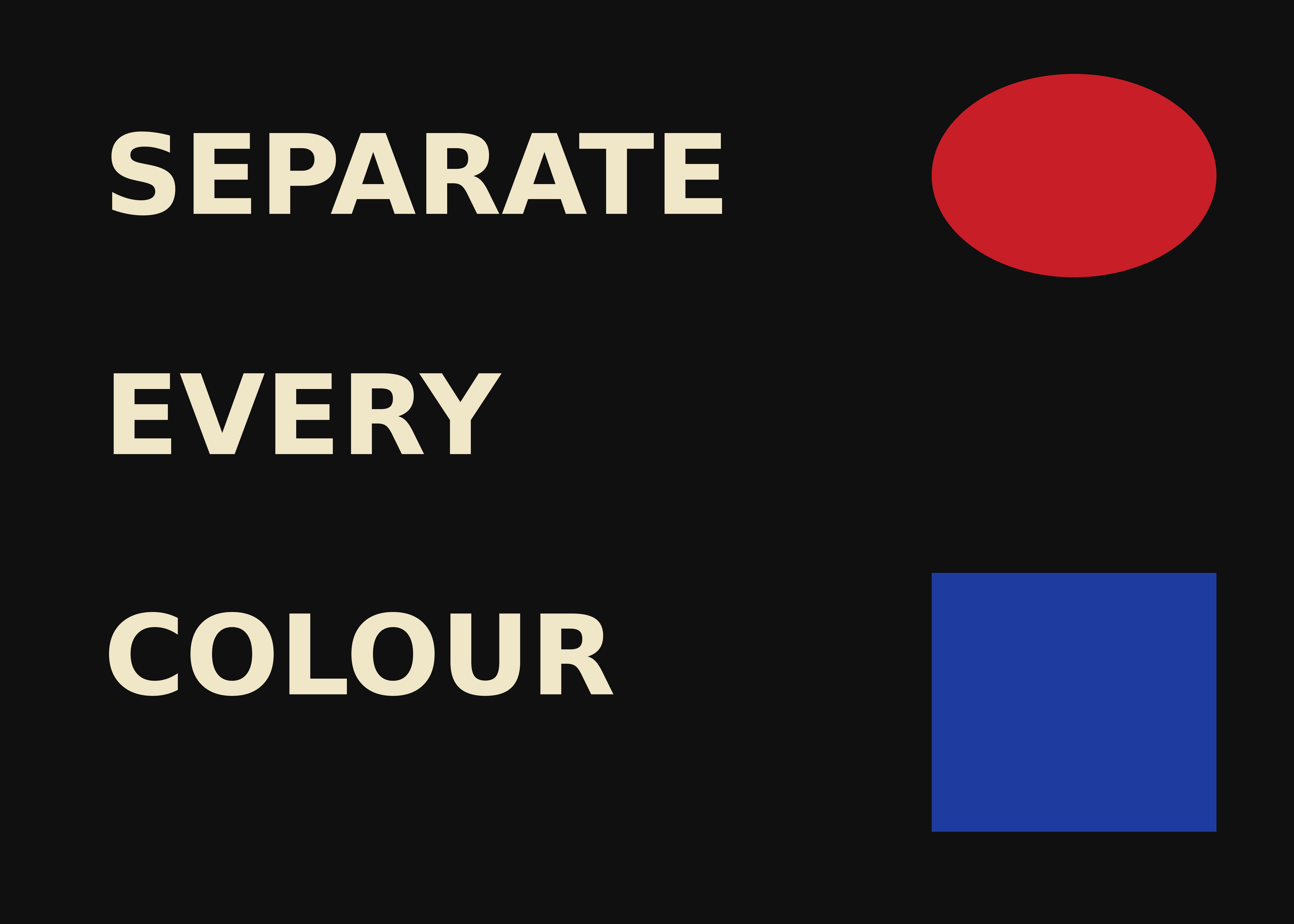
A three-ink job, separated reproducibly
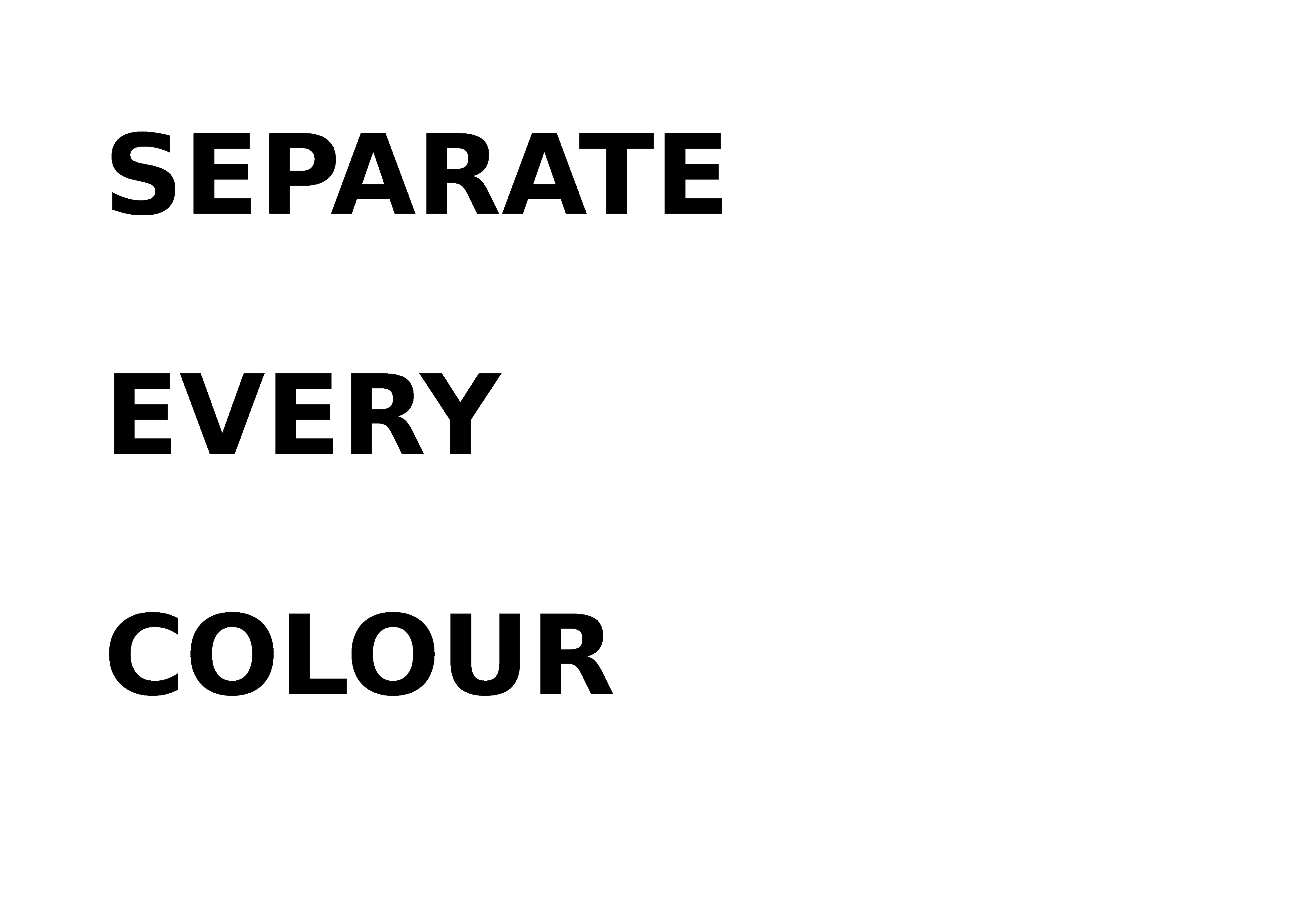
Below is a worked regression proof, not a mock-up. The committed scripts/make-seps-proof.mjs bundles and calls the same app/src/lib/pipeline/seps.ts shipped in the Colours workspace, feeds it the 4,200×3,000 source above, and writes the masks the engine returns. The result is three ink plates — Blue #1e3ea2, Cream #f2e6ca and Red #ca1e2a — plus Black #121212 as the base rather than a screen. The cream plate is the one to inspect: all 19 disconnected letters share one screen. Every plate and film positive below is a lossless PNG; the accompanying manifest records the source and engine hashes so npm run test:seps-proof fails when the checked-in proof drifts.
And the multichannel PSD, checked by something that is not us
The multichannel writer has a separate four-channel regression fixture named Red, Navy, Gold and Cream. The test suite parses the bytes itself and reads them back through ag-psd and psd-tools, checking multichannel mode, real spot records, names, ink colours, dimensions, DPI, compression and polarity. The garment base is deliberately absent, because the substrate is not a screen and nobody should burn one for the shirt. That writer fixture is not the plate artwork pictured above, and Photoshop has still not opened it in a hands-on test; until that happens, independently parsed is the claim we can support.
Export formats for the next tool
Three shapes of file, all written in your browser. A layered PSD: one named layer per ink, every plate at full canvas size and in register, for a conventional layer editor. A multichannel PSD: one real spot channel per ink, each carrying its ink colour and name, at the physical DPI implied by the print width you set; the garment base is deliberately left out so nobody burns a screen for the shirt. Or a ZIP of per-ink transparent PNGs and film positives, numbered in stacking order for the widest compatibility. There is no built-in RIP or direct-print integration: your RIP, image editor or driver takes the appropriate file from there. The multichannel structure is covered by independent parsers, but the outstanding Photoshop hands-on test is stated above.
Halftones, underbase and simulated process
These are no longer roadmap items. The Color separation tab handles all four separation types — spot, index, CMYK, and simulated process — and the print-ready render adds the print math on top: halftone screening with separated angle sets (your choice of frequency, dot shape, and output DPI), a choked underbase, a separate highlight white printed last, a dot-gain compensation curve, registration marks, and optional vector-traced plates. A retained local Spot or Index ink list can also send per-ink choke/spread into a Spot, Index or Simulated-process render; the shipped CMYK workspace does not expose per-channel choke or density. Spot and index start with halftoning off; selecting CMYK or simulated process turns it on. Turn it off when your RIP should receive continuous-tone grayscale plates, or leave it on for pre-halftoned 1-bit film.
Where the manual density adjustment actually appears
Fully automatic sim-process is unreliable in every tool on the market, so the paid renderer accepts a custom ink list with a whole-channel density value for each ink. In the current workspace those sliders appear only when you first make a free Spot or Index result and keep that local palette on screen before switching to Simulated process; a direct Simulated-process render lets the server choose its palette, returns an opaque ZIP, and does not populate editable channels afterwards. The retained-palette path lets you pull each ink back or restore it toward full strength, set per-ink choke/spread, set underbase choke, and turn highlight white on or off. It still does not expose a per-channel tone-curve editor or an adjustable highlight threshold, so a difficult photograph can need a dedicated separator or downstream channel work.
Priced against what separations actually cost you
The alternative most shops use for the awkward jobs is an outside separator, and those are per-design fees. Published prices, checked 28 July 2026: ContractPrinter lists $15 for one or two spot colours, $30 for three to five, $55 for six to eight, and $85 and up for nine-plus or photorealistic simulated process, with $5 for each revision; Victory Screen Factory lists $18.99 for two colours rising to $78.99 for eight. That $85 is the top of the field rather than the going rate for photographic work, and it is worth knowing the flat-fee services exist: checked 29 July 2026, Burn My Screen lists a flat $60 per design, 24 Hour Seps — Scott Fresener's own service — lists a flat $65 per set for any number of colours (a promotional rate when checked; their volume packs go lower), and Color-Separation.com lists $15 to $50 including the underbase and highlight white. So realistically, outsourcing a hard sim-process design runs somewhere in the $50 to $85 band, and a simple two-colour job runs $15 to $19. Turnaround field-wide is commonly a day, sometimes two, though neither ContractPrinter nor Victory publishes one. Here, spot and index separation cost nothing at all, and the print-ready render is 10 credits per image, with free re-renders of that image for 24 hours instead of a revision fee and a fresh wait. Credits come with a monthly plan, or as a one-off pack whose credits never expire — see the pricing page for current prices in your currency. For a genuinely difficult photograph on a dark garment, a skilled human separator is still worth the money; for the everyday spot-colour job list, paying per design is overhead you can stop.




Frequently asked
Is this really free, or free-for-a-week free?
Really free, with no trial clock. Spot and index separation need no account to run: ink count and tolerance, merging and renaming inks, reordering and per-plate preview. Generated plate layers can be brushed and taken through the editor's ordinary document exports; the Colours-panel plate and spot-channel writers use the raw separation masks. Downloads require a free account; after sign-in, PNG/ZIP/ORA exports are unlimited and the layered and multichannel PSDs share one free export a day. Exports keep the working canvas size with no watermark or export-tier downscale; an unusually large source may already have been fitted to the current device's memory ceiling. A monthly plan removes the PSD cap and buys the server-side print-ready render at 10 credits per image, with free re-renders of that image for 24 hours. A one-off pack adds credits that never expire but does not remove the daily PSD cap.
What does the free version not do?
It does not halftone, and it does not generate the underbase. Free separation gives you flat masks in register at the working canvas size: the largest colour field is marked as the non-printing base, and each remaining ink becomes a printable plate. That is usable separation artwork for a flat spot job when the base assumption, source resolution and raw edges are right, and a genuine starting point for anything else, plus both PSD exports including the multichannel one with real spot channels. Halftone screening, the choked underbase, the separate highlight white, per-ink choke and spread, dot-gain compensation, registration marks, CMYK, simulated process, optional SVG traces and 1-bit film targeting 600 or 1200 dpi within the disclosed output caps are the paid render. Automatic trapping is not an exposed control. Index separation sits in an unusual middle: its masks already contain solid dithered dots, so they do not need a second halftone screen; resolution, base choice, registration and film output still need checking for the job.
How many colors can it separate?
Up to 12 inks per pass, set with the ink count control. Most spot jobs are 2–6 inks; the largest color area is kept as the base (usually your garment) and each remaining ink is lifted to its own named plate. Index separation uses the same ink count to posterize a photograph down to a printable palette.
Does it do halftones or simulated process?
Yes, both. Spot, index, CMYK, and simulated process separation are all in the Color separation tab, and the print-ready render adds halftone screening (frequency, angle set, dot shape, output DPI), a choked underbase, a separate highlight white and dot-gain compensation. If you retain a local Spot or Index palette before switching, its per-ink choke/spread and whole-channel density values can feed Simulated process; a direct paid render has no editable channels before download. CMYK exposes neither per-channel choke nor density, and the workspace has no per-channel tone curves. Spot and index separation are free in your browser; the print-ready render is 10 credits per image, and re-rendering the same image after a tweak is free for 24 hours.
Does my artwork get uploaded?
Only if you ask for the print-ready render. Spot and index separation, the ink list, per-plate preview, and every file writer (PNG, ZIP, ORA, layered PSD, multichannel PSD) run client-side; account checks and anonymous outcome beacons send metadata, but never the design. The print-ready render (halftones, choked underbase, choke/spread, dot gain, film output and optional SVG tracing) needs a server, so it does upload the image; it is clearly labeled with its 10-credit cost, and the server copy is deleted within 24 hours. The other server AI features (subject separation, background fill) work the same way. Nothing you upload is ever used to train models.
What about anti-aliased edges between inks?
A blended edge that lies between two known inks is split as grayscale coverage between those two plates rather than becoming a stray third plate. Tolerance decides which colours qualify as real inks. Index output and the paid 1-bit-film option resolve coverage into solid dots; raw spot PNG and PSD masks preserve the grayscale edge coverage.
Keep reading
Upscale low-resolution art before separatingSpot color separationSimulated process color separationIndex separation vs simulated processCMYK separation for screen printingHow to separate colors in Photoshop for screen printingColor separation services: what they costHalftones for screen printing: lpi, angles, filmHow to make a white underbase for dark garmentsRaster to vector for screen printingUltraSeps alternativeSeparation Studio alternativeT-Seps alternativeRelated
Spot color separation, free and in your browserIndex color separation, and when to choose it over simulated processSimulated process color separation — and where automation stopsCMYK separation for screen printingHalftones for screen printing: lpi, angles, dot shape, film outputHow to create a white underbase for dark garmentsRaster to vector for screen printing: turning a customer JPEG into platesAn UltraSeps alternative that does not sit inside Photoshop